
Orders & Transactions

LoomMate Journey: Learn Step by Step, Orders & Transactions

How to Create an Invoice in LoomMate?

How to Create an Invoice in LoomMate? Invoices are essential for tracking sales and ensuring timely payments from clients. LoomMate makes creating and managing invoices quick, accurate, and linked directly to your orders. Video Walkthrough (Watch the video below for a complete step-by-step tutorial. Prefer reading? Continue with the guide.)   Step-by-Step Guide to Creating an Invoice Step 1: Open the Invoice Section From the Dashboard, go to Finance → Invoices. Click on + Create New Invoice. Step 2: Select the Client Choose the client from your Clients List. If it’s a new client, add them first using + Add New Client. Step 3: Add Order Details Select the Sell Order(s) to link with this invoice. The items, quantity, and price will automatically populate from the order. Step 4: Add Additional Charges (if any) You can include: Taxes (GST, VAT, etc.) Discounts Shipping / Handling Charges Step 5: Review & Confirm Verify all details: client info, items, amounts, and taxes. Click Save & Generate Invoice. Step 6: Send or Export Invoice Use the Send via Email option to deliver the invoice to the client. Export or print the invoice as PDF for records. Troubleshooting Tips Client details incorrect? Edit the client record before generating the invoice. Invoice total doesn’t match? Ensure taxes, discounts, and quantities are entered correctly. Invoice not saving? Check if the linked sell order is confirmed and not in draft mode. Next Steps Now that you know how to create invoices in LoomMate, you can: Track pending and paid invoices in the dashboard Link invoices with your Ledger for financial tracking Move on to the next tutorial: How to Use the Ledger in LoomMate
LoomMate Journey: Learn Step by Step, Orders & Transactions

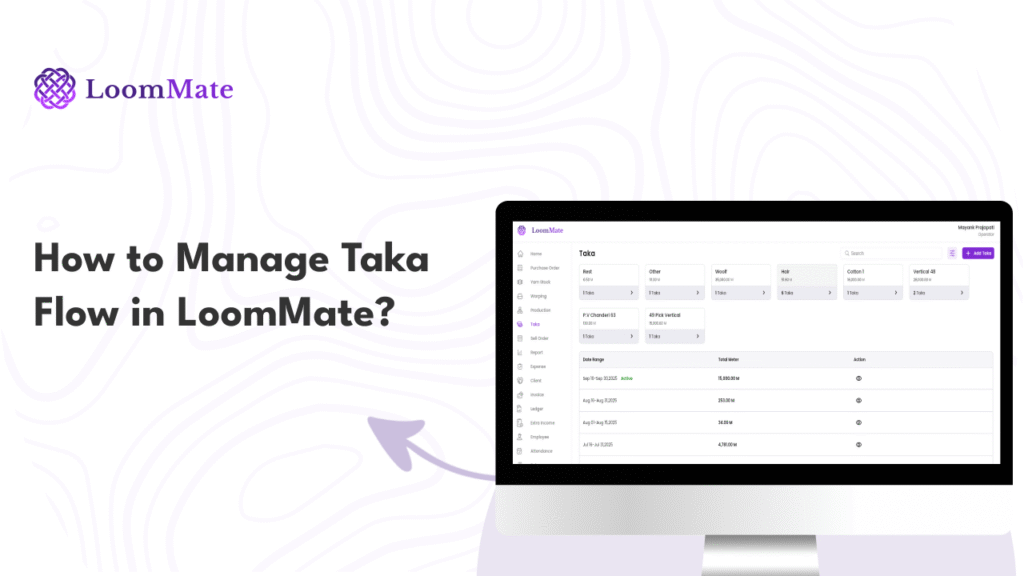
How to Manage Taka Flow in LoomMate?

How to Manage Taka Flow in LoomMate In textile operations, every taka (fabric roll) matters. LoomMate’s Taka Flow feature helps you track each roll, from production to sales, so you can maintain complete control over your inventory and avoid confusion. Video Walkthrough (Watch the video below for a complete step-by-step tutorial. Prefer reading? Continue with the guide.) Step-by-Step Guide to Managing Taka Flow Step 1: Open the Taka Flow Section From the Dashboard, go to Production → Taka Flow. Click on + Add New Taka to start. Step 2: Enter Taka Details Fill in the following information: Loom / Machine Number Taka Number (auto-generated or manual) Fabric type / Yarn type Length (in meters or yards) Weight (optional) Step 3: Assign Status Select the current status of the taka, such as: In Production Ready for Inspection Approved Ready for Sale Step 4: Save the Taka Record Click Save & Continue to store the entry. The taka will now appear in your Taka Flow Dashboard. Step 5: Track Movement From the dashboard, you can monitor the movement of each taka: Production → Inspection → Warehouse → Sales. Update status as the roll moves through each stage. Troubleshooting Tips Duplicate Taka Number? Make sure each roll has a unique ID. Wrong entry? Use the Edit option before finalizing. Missing data? Ensure machine number and length are entered correctly to avoid mismatches. Next Steps Now that you know how to manage Taka Flow in LoomMate, you can: Link takas with Sell Orders for accurate stock updates Generate Reports to see production vs. sales performance Continue learning with our next guide: How to Add a Yarn Company in LoomMate

LoomMate Journey: Learn Step by Step, Orders & Transactions

How to Create a Sell Order in LoomMate 

How to Create a Sell Order in LoomMate? Selling products efficiently is just as important as managing your purchases. LoomMate makes it easy to create and track sell orders, ensuring your textile business runs smoothly and customers get what they need on time. Video Walkthrough (Watch the video below for a complete step-by-step tutorial. Prefer reading? Continue with the guide.) Step-by-Step Guide to Creating a Sell Order Step 1: Open the Sell Order Section From the Dashboard, go to Sales → Sell Order. Click on + Create New Sell Order. Step 2: Select the Customer Choose the customer from your saved list. If it’s a new customer, click Add New Customer and enter their details. Step 3: Add Order Details Enter the Order Date and Delivery Date. Select Payment Terms if required. Step 4: Add Items to the Order Select the product (e.g., Yarn, Fabric, or Finished Goods). Enter details such as: Item name / category Quantity Rate per unit Total amount (auto-calculated by LoomMate) Step 5: Review & Confirm Verify all details for accuracy. Click Save & Confirm to finalize the sell order. Troubleshooting Tips Can’t find a customer? Add them first in the Customer List. Need to update order details? Edit or delete items before confirming. Order not saving? Ensure mandatory fields (customer, date, and item details) are complete. Next Steps Now that your sell order is created, you can: Track its progress in the Sell Orders Dashboard Generate Invoices directly from the sell order Move on to the next tutorial: How to Manage Taka in LoomMate

LoomMate Journey: Learn Step by Step, Orders & Transactions

How to Create a Purchase Order in LoomMate

How to Create a Purchase Order in LoomMate Efficient purchasing is the backbone of any textile business. LoomMate makes it simple to create, manage, and track your purchase orders so you can stay on top of raw material needs without missing a beat. Video Walkthrough (Watch the video below for a complete step-by-step tutorial. Prefer reading? Continue with the guide.) Step-by-Step Guide to Creating a Purchase Order Step 1: Open the Purchase Order Section From the Dashboard, go to Purchase → Purchase Order. Click on + Create New Purchase Order. Step 2: Select the Supplier Choose the supplier from your saved list. If it’s a new supplier, click Add New Supplier and enter their details. Step 3: Add Purchase Details Enter the Order Date and Expected Delivery Date. Select Payment Terms if required. Step 4: Add Items to the Order Select the Yarn / Raw Material category. Enter details such as: Yarn type / category Quantity Rate per unit Total amount (auto-calculated by LoomMate) Step 5: Review & Confirm Double-check all the details. Click Save & Confirm to finalize the purchase order. Troubleshooting Tips Can’t find a supplier? Add them first in the Supplier List. Entered wrong item details? Edit or delete before confirming. Order not saving? Make sure all required fields (supplier, date, and item details) are filled in. Next Steps Now that your purchase order is created, you can: Track its status in the Purchase Orders Dashboard Generate Reports for planning and analysis Move on to the next tutorial: How to Create a Sell Order in LoomMate

Index
Scroll to Top