LoomMate Journey: Learn Step by Step

Client & Relationship Management, LoomMate Journey: Learn Step by Step

How to Manage Clients in LoomMate?

How to Manage Clients in LoomMate? Keeping accurate client records is essential for smooth business operations. LoomMate allows you to manage all your customers in one place — from adding new clients to tracking their orders and payments. Video Walkthrough (Watch the video below for a complete step-by-step tutorial. Prefer reading? Continue with the guide.) Step-by-Step Guide to Managing Clients Step 1: Open the Client Section From the Dashboard, go to Sales → Clients. Click on + Add New Client to create a new record. Step 2: Enter Client Details Fill in the following information: Client Name Contact Person Phone Number / Email Address GST Number (if applicable) Payment Terms / Credit Limit (optional) Step 3: Save the Client Record Click Save to add the client to your database. The client will now appear in your Clients List. Step 4: Edit or Delete Client Use the Edit option to update client information. Use Delete if a client is no longer active (ensure no pending orders exist). Step 5: Track Client Orders From the client record, you can quickly view all purchase and sell orders linked to them. This helps in monitoring order history and pending payments. Troubleshooting Tips Cannot find a client? Make sure they are added in the client list. Incorrect details? Edit the client record immediately to prevent errors in orders or invoices. Client deletion blocked? Check if the client has active orders — you must clear them first. Next Steps Now that your client database is set up in LoomMate, you can: Link clients to Sell Orders for faster processing Track pending payments and order history Move on to the next tutorial: How to Create Invoices in LoomMate


Finance & Accounting, LoomMate Journey: Learn Step by Step

How to Manage Expenses in LoomMate?

How to Manage Expenses in LoomMate? Keeping track of expenses is vital for controlling costs in any textile business. LoomMate makes expense management simple, allowing you to record, categorize, and review all your business spending in one place. Video Walkthrough (Watch the video below for a complete step-by-step tutorial. Prefer reading? Continue with the guide.) Step-by-Step Guide to Managing Expenses Step 1: Open the Expense Section From the Dashboard, go to Finance → Expenses. Click on + Add New Expense. Step 2: Enter Expense Details Fill in the following information: Expense Category (e.g., Electricity, Rent, Raw Materials, Transport) Amount Date Payment Method (Cash, Bank, UPI, etc.) Notes (optional, e.g., Bill Number, Description) Step 3: Save the Expense Click Save & Confirm to add the expense record. The expense will now appear in your Expense List Dashboard. Step 4: View and Manage Expenses Use filters to view expenses by Category, Date Range, or Amount. Edit or delete any entry if needed. Step 5: Generate Expense Reports Click on Generate Report to see your expenses in detail. Export reports to Excel / PDF for accounting or audits. Troubleshooting Tips Duplicate expense entry? Use the delete option to remove extra records. Wrong category? Edit the expense and update to the correct category. Report not matching? Check if all expenses are confirmed and not left in draft mode. Next Steps Now that you’ve learned how to manage expenses in LoomMate, you can: Monitor your business spending effectively Compare expenses with income using Reports Move on to the next tutorial: How to Manage Clients in LoomMate

Finance & Accounting, LoomMate Journey: Learn Step by Step

How to Generate and View Reports in LoomMate

How to Generate and View Reports in LoomMate? Reports are the backbone of smart business decisions. With LoomMate, you can instantly generate detailed reports on your textile operations — from purchase and sales to inventory, expenses, and employee management — all in one place. Video Walkthrough (Watch the video below for a complete step-by-step tutorial. Prefer reading? Continue with the guide.) Step-by-Step Guide to Generating Reports Step 1: Open the Reports Section From the Dashboard, go to Reports in the main menu. You’ll see different categories of reports available. Step 2: Select the Report Type Choose the type of report you want to view, such as: Purchase Report (track all purchase orders) Sell Report (monitor customer orders & invoices) Inventory Report (check stock levels & usage) Taka Report (fabric roll movement & status) Expense Report (business expenses overview) Employee Report (attendance & salary details) Step 3: Apply Filters Narrow down your report using filters like: Date range Customer or Supplier Product / Yarn type Status (Pending, Completed, etc.) Step 4: Generate the Report Click on Generate / View Report. LoomMate will display the data instantly in table or chart format. Step 5: Export or Print Use the Export option to download reports in Excel / PDF. Click Print if you need a hard copy. Troubleshooting Tips Report looks empty? Make sure the date range or filters are correct. Missing data? Check if the related purchase/sell order is confirmed in the system. Export not working? Ensure your browser/app has permission to download files. Next Steps Now that you can generate reports in LoomMate, you can: Track business performance in real-time Share insights with your team or management Move on to the next tutorial: How to Manage Expenses in LoomMate

LoomMate Journey: Learn Step by Step, Orders & Transactions

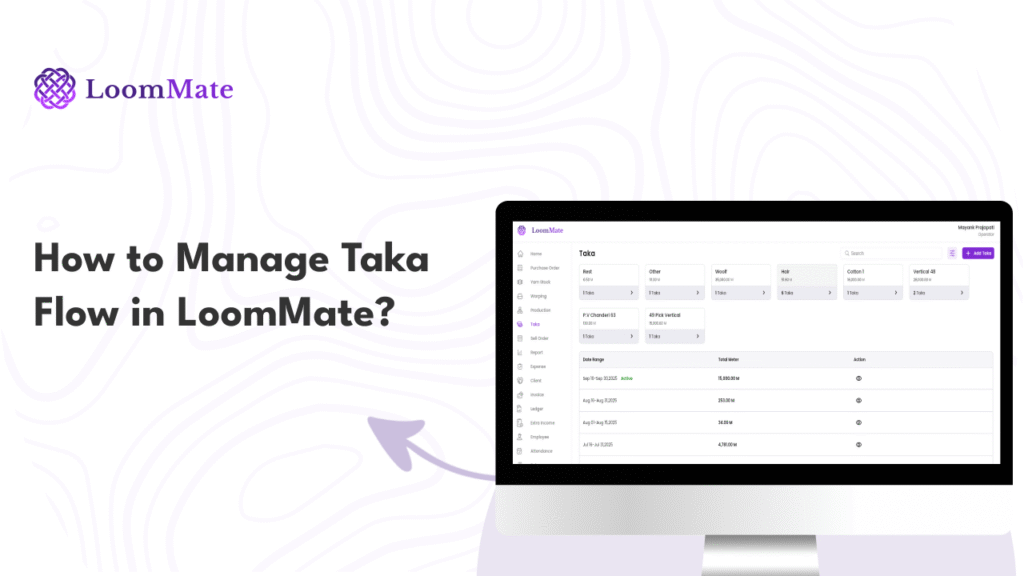
How to Manage Taka Flow in LoomMate?

How to Manage Taka Flow in LoomMate In textile operations, every taka (fabric roll) matters. LoomMate’s Taka Flow feature helps you track each roll, from production to sales, so you can maintain complete control over your inventory and avoid confusion. Video Walkthrough (Watch the video below for a complete step-by-step tutorial. Prefer reading? Continue with the guide.) Step-by-Step Guide to Managing Taka Flow Step 1: Open the Taka Flow Section From the Dashboard, go to Production → Taka Flow. Click on + Add New Taka to start. Step 2: Enter Taka Details Fill in the following information: Loom / Machine Number Taka Number (auto-generated or manual) Fabric type / Yarn type Length (in meters or yards) Weight (optional) Step 3: Assign Status Select the current status of the taka, such as: In Production Ready for Inspection Approved Ready for Sale Step 4: Save the Taka Record Click Save & Continue to store the entry. The taka will now appear in your Taka Flow Dashboard. Step 5: Track Movement From the dashboard, you can monitor the movement of each taka: Production → Inspection → Warehouse → Sales. Update status as the roll moves through each stage. Troubleshooting Tips Duplicate Taka Number? Make sure each roll has a unique ID. Wrong entry? Use the Edit option before finalizing. Missing data? Ensure machine number and length are entered correctly to avoid mismatches. Next Steps Now that you know how to manage Taka Flow in LoomMate, you can: Link takas with Sell Orders for accurate stock updates Generate Reports to see production vs. sales performance Continue learning with our next guide: How to Add a Yarn Company in LoomMate

LoomMate Journey: Learn Step by Step, Orders & Transactions

How to Create a Sell Order in LoomMate 

How to Create a Sell Order in LoomMate? Selling products efficiently is just as important as managing your purchases. LoomMate makes it easy to create and track sell orders, ensuring your textile business runs smoothly and customers get what they need on time. Video Walkthrough (Watch the video below for a complete step-by-step tutorial. Prefer reading? Continue with the guide.) Step-by-Step Guide to Creating a Sell Order Step 1: Open the Sell Order Section From the Dashboard, go to Sales → Sell Order. Click on + Create New Sell Order. Step 2: Select the Customer Choose the customer from your saved list. If it’s a new customer, click Add New Customer and enter their details. Step 3: Add Order Details Enter the Order Date and Delivery Date. Select Payment Terms if required. Step 4: Add Items to the Order Select the product (e.g., Yarn, Fabric, or Finished Goods). Enter details such as: Item name / category Quantity Rate per unit Total amount (auto-calculated by LoomMate) Step 5: Review & Confirm Verify all details for accuracy. Click Save & Confirm to finalize the sell order. Troubleshooting Tips Can’t find a customer? Add them first in the Customer List. Need to update order details? Edit or delete items before confirming. Order not saving? Ensure mandatory fields (customer, date, and item details) are complete. Next Steps Now that your sell order is created, you can: Track its progress in the Sell Orders Dashboard Generate Invoices directly from the sell order Move on to the next tutorial: How to Manage Taka in LoomMate

LoomMate Journey: Learn Step by Step, Orders & Transactions

How to Create a Purchase Order in LoomMate

How to Create a Purchase Order in LoomMate Efficient purchasing is the backbone of any textile business. LoomMate makes it simple to create, manage, and track your purchase orders so you can stay on top of raw material needs without missing a beat. Video Walkthrough (Watch the video below for a complete step-by-step tutorial. Prefer reading? Continue with the guide.) Step-by-Step Guide to Creating a Purchase Order Step 1: Open the Purchase Order Section From the Dashboard, go to Purchase → Purchase Order. Click on + Create New Purchase Order. Step 2: Select the Supplier Choose the supplier from your saved list. If it’s a new supplier, click Add New Supplier and enter their details. Step 3: Add Purchase Details Enter the Order Date and Expected Delivery Date. Select Payment Terms if required. Step 4: Add Items to the Order Select the Yarn / Raw Material category. Enter details such as: Yarn type / category Quantity Rate per unit Total amount (auto-calculated by LoomMate) Step 5: Review & Confirm Double-check all the details. Click Save & Confirm to finalize the purchase order. Troubleshooting Tips Can’t find a supplier? Add them first in the Supplier List. Entered wrong item details? Edit or delete before confirming. Order not saving? Make sure all required fields (supplier, date, and item details) are filled in. Next Steps Now that your purchase order is created, you can: Track its status in the Purchase Orders Dashboard Generate Reports for planning and analysis Move on to the next tutorial: How to Create a Sell Order in LoomMate

Getting Started, LoomMate Journey: Learn Step by Step

How to Login and Access Dashboard in Loommate

1. How to Login and Access Dashboard in Loommate? Managing your textile operations in Loommate starts with a simple login. In this guide, you’ll learn step-by-step how to log in and reach your dashboard where all important features are available. Video Walkthrough (Watch the video below for a complete step-by-step tutorial. If you prefer reading, continue with the guide.) Step-by-Step Login Guide Step 1: Open the Loommate Login Page Open the Loommate app or website. You’ll see the login page with two input fields: Username and Password. Step 2: Enter Your Username In the Username field, type the username provided during your registration. Step 3: Enter Your Password In the Password field, type your secure password. Make sure Caps Lock is turned off to avoid errors. Step 4: Click on the “Login” Button After filling in your details, click the Login button. If your credentials are correct, you’ll be redirected to the dashboard. Step 5: Explore the Dashboard Once logged in, you’ll land on the Dashboard. Here, you’ll find quick access to: Textile orders Inventory management Customer records Reports & insights Troubleshooting Tips Forgot Password? Click on the Forgot Password link on the login page and follow the reset instructions. Wrong Username/Password? Double-check spelling and ensure you’re using the registered details. Still can’t log in? Contact your admin or Loommate support team. Next Steps Now that you can successfully log in and access your dashboard, you’re ready to manage your textile operations smoothly. 👉 Continue learning with our next guide: How to create purchase order in Loommate

Index
Scroll to Top